Players can enter social/general play scores via the MyEG app by clicking on the ‘Scorecard’ function at the foot of the dashboard screen and following the instructions.
Advice would be to whenever possible to enter hole by hole scores during play and have the score attested and submitted promptly after play on the day of play and before leaving the golf club.
If the ‘Enter Score’ function is not visible on the app, please go to the app store to download the latest version of the MyEG app.
Note: you must ensure your attester/marker has the most up-to-date version of the MyEG app (including the score entry icon) to be able to select them as your app scorecard verifier and for them to verify your score.
Also, when submitting a score through the mobile app, there is the option to add scores for playing partners. However, as with paper scorecards, each player must submit their own score separately for it to be recorded against their handicap. Including a playing partner in your round will ensure their name appears first when selecting an attester of your card for submission. If the attester, or anyone else in your playing group, wants to submit their own score, they need to go through the score entry process on their own app.
Please see our step-by-step guide to score entry.
Please note, the functionality is the same but the branding between the club member app and iGolf app may be different.
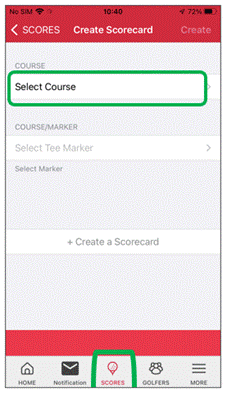
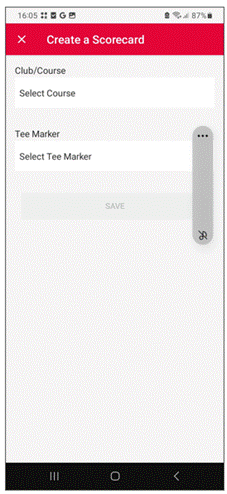
- Open the MyEG app and click “Scores” at the foot of the dashboard screen, highlighted below and then “Select Course”:
IPHONE | ANDROID |
|
|
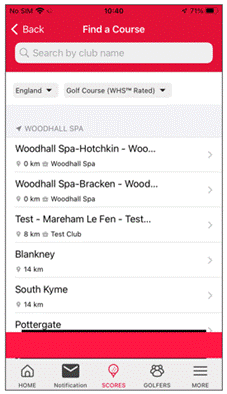
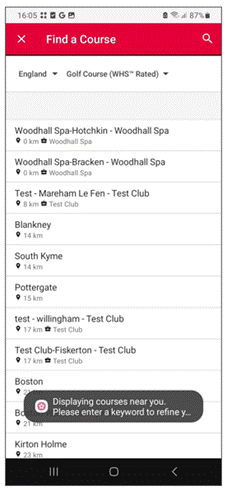
- Select the course you wish to play at:
IPHONE | ANDROID |
|
|
- Then select from the tee markers:
IPHONE | ANDROID |
|
|
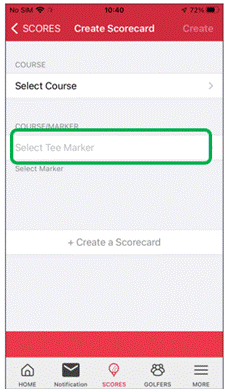
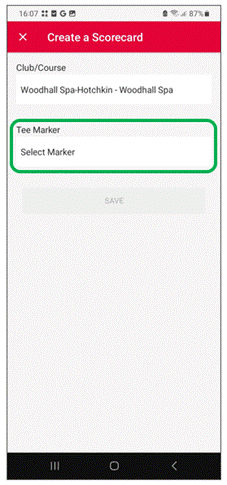
Note: You have the option of selecting a WHS™ Rated course or a non-rated course.
- WHS™ Rated are 9 and 18 hole golf courses around England
- Non-Rated facilities include short courses, such as par 3 and pitch & putt courses and mini golf courses, such as adventure golf or crazy golf.
IPHONE | ANDROID |
|
|
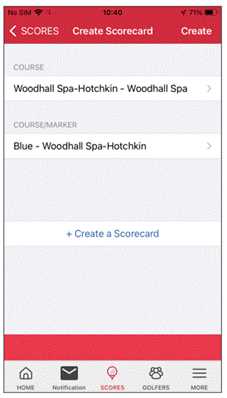
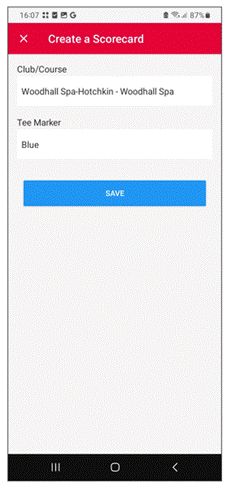
If the tee markers available are incorrect, you will need to contact the relevant club to update them.
Select “Create a Scorecard”
IPHONE | ANDROID |
|
|
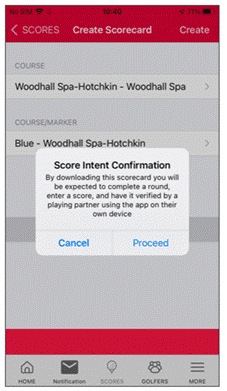
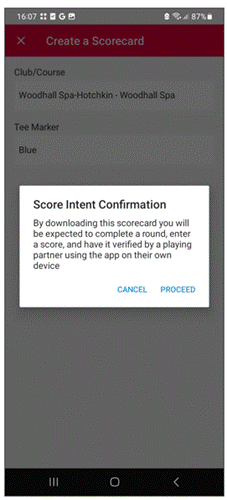
You will then be presented with the message, click ‘Proceed’ to create the scorecard:
Note: If you see an error message relating to your location, please see the LOCATIONS section for further information.
- Your scorecard will then appear under ‘Active Scorecard’:
| IPHONE | ANDROID |
|
|
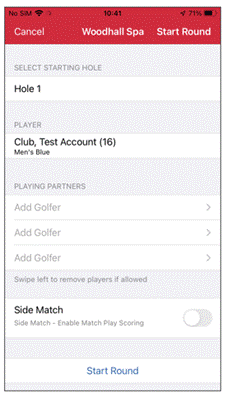
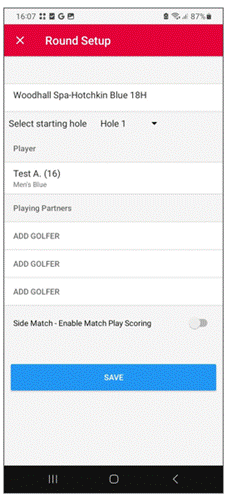
Notes:
- When submitting a score through the MyEG app, there is the option to add scores for playing partners. However, as with paper scorecards, each player must submit their own score separately for it to be recorded against their handicap. Including a playing partner in your round will ensure their name appears first when selecting an attester submission of your round. If the attester, or anyone else in your playing group, wants to submit their own score, they need to go through the score entry process on their own app.
Adding a playing partner
You can either select from your ‘Friends’ list or ‘Add guest’ for a player not in your friends list (a “Guest” will not be able to attest your score).
Press on “Add Player”
IPHONE | ANDROID |
|
|
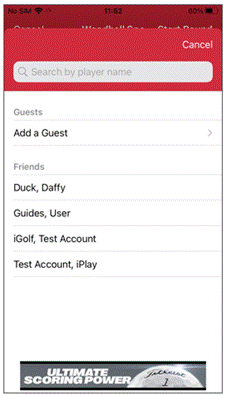
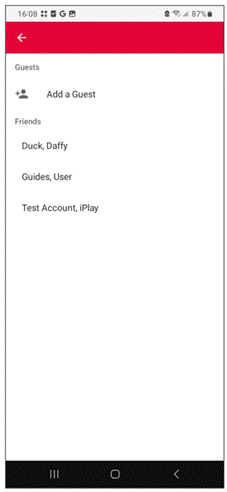
Note: It is not mandatory to add a playing partner at the beginning of your round. This can be completed at the end of the round if you prefer.
6. If you select the wrong playing partner, you can swipe left to remove them
IPHONE | ANDROID |
|
|
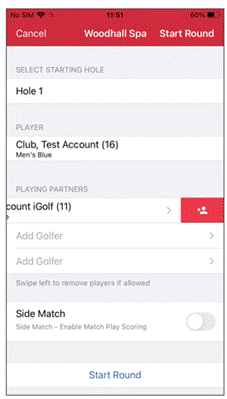
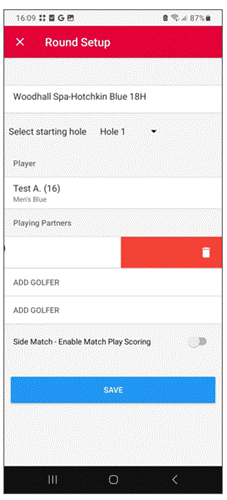
6a. Turn on ‘Side Match’ if you are playing a mini match between yourselves. Please note it will still add your round/score to your handicap. All details relating to playing partners WILL NOT be added to their Handicap Index®.
IPHONE | ANDROID |
|
|
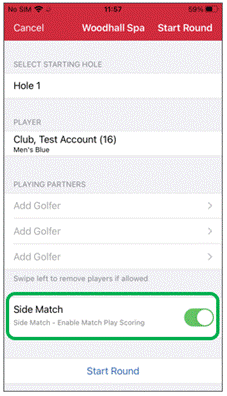
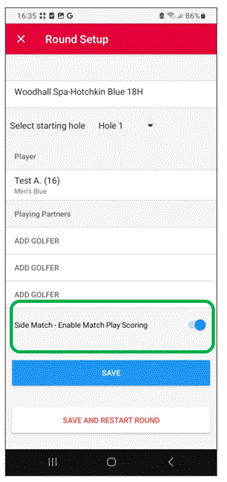
Select ‘Start Round” or “Create Scorecard”:
IPHONE | ANDROID |
|
|
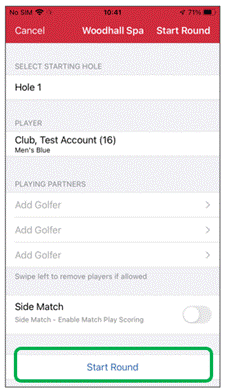
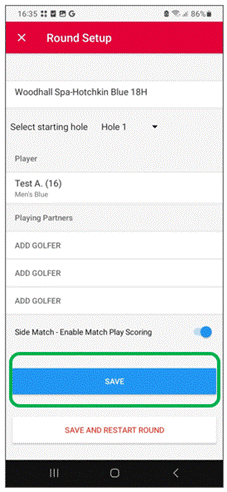
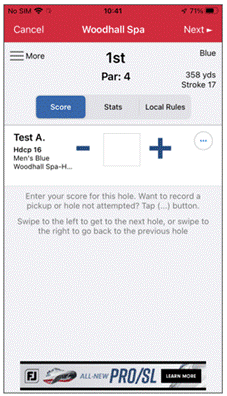
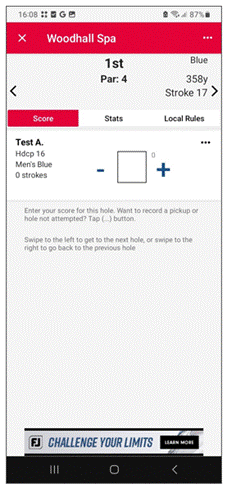
7. Enter hole by hole scores, clicking the ‘Next >’ button to proceed to the next hole:
IPHONE | ANDROID |
|
|
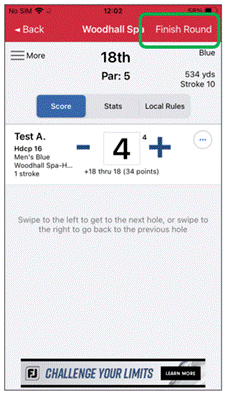
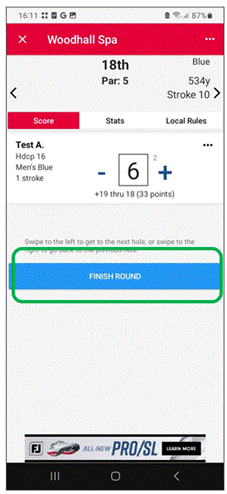
8. When you have completed your 9 or 18 holes click “Finish Round”:
IPHONE | ANDROID |
|
|
9. At the end of the round your complete scorecard will be displayed where you can review/amend hole by hole score by clicking on each one within the scorecard, then selecting “Confirm Score” or a red tick:
IPHONE | ANDROID |
|
|
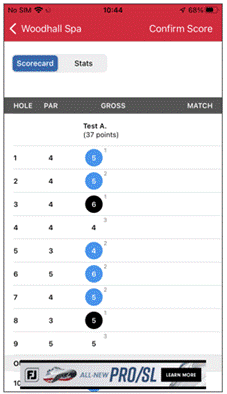
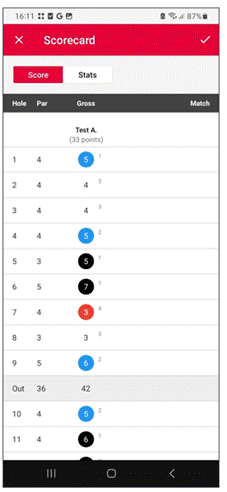
Colour Legend:
- Green: Eagle or better
- Red: Birdie
- White: Par
- Blue: Bogey
- Black: 2 Over+
- *Black: Nett Double Bogey
- Hole started not completed.
- *White: Nett Par
- Hole not started.
10. On the ‘Confirm and Submit Score’ screen you will need to:
- Sign the scorecard with finger/screen pen:
IPHONE | ANDROID |
|
|
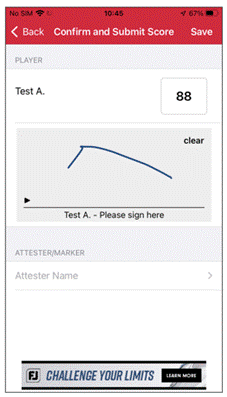
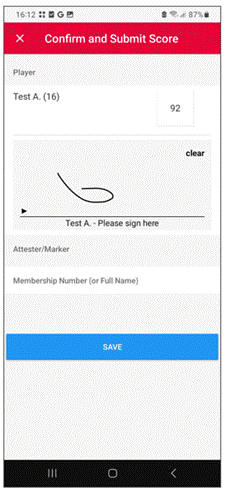
- Add scorecard ‘Attester/Marker’ by selecting ‘Attester name’ and either:
11. Select “Search Player” – see below:
IPHONE | ANDROID |
|
|
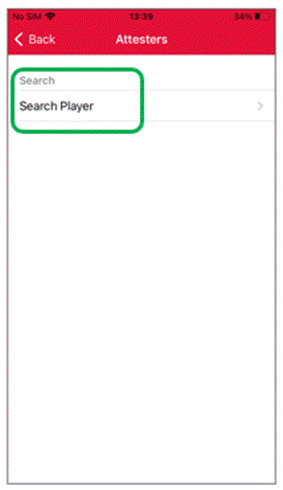
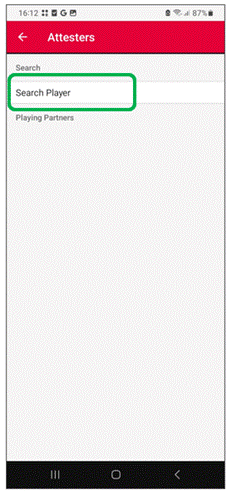
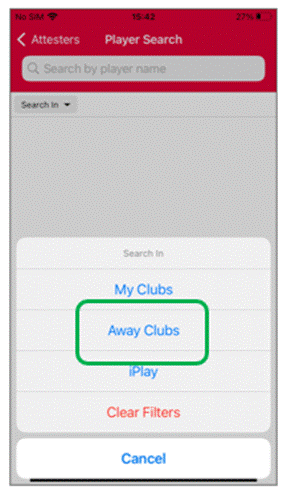
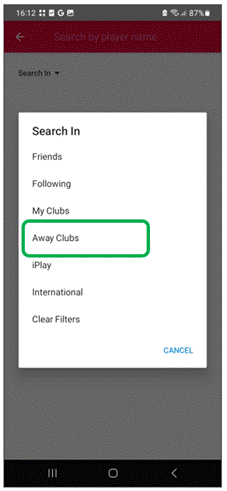
12. Select “Search In” – see below:
IPHONE | ANDROID |
|
|
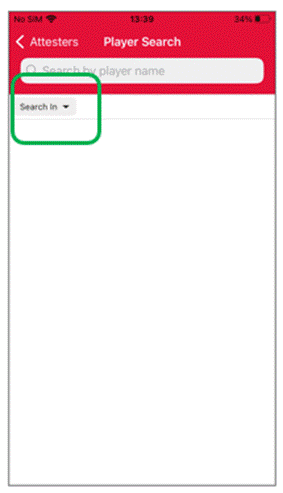
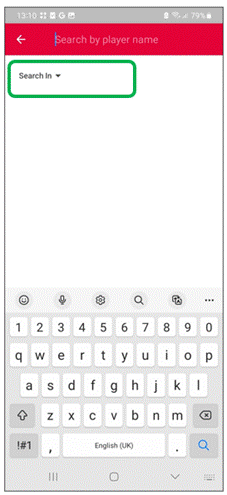
13. Select the group your playing partner belongs – in this example we will select iGolf which will be the “away club” – see below for an explanation of these options:
- Friends: this searches within your friends list
- My Clubs: This relates to any clubs you are a member of I.e. home club and secondary club/s
- Away Clubs: This relates to any affiliated club that you are not a member of
- iPlay: This relates to any iPlay user
- Clear filters: This resets any changes you have made to this filter
IPHONE | ANDROID |
|
|
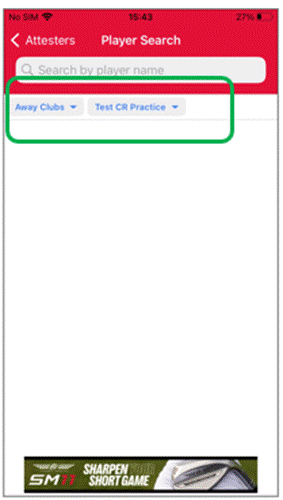
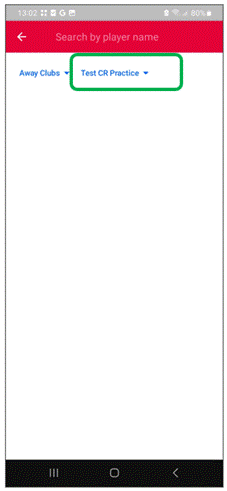
14. Select the club name filter – see below:
IPHONE | ANDROID |
|
|
15. You will see a list of relevant club names – pick the correct name – see below:
IPHONE | ANDROID |
|
|
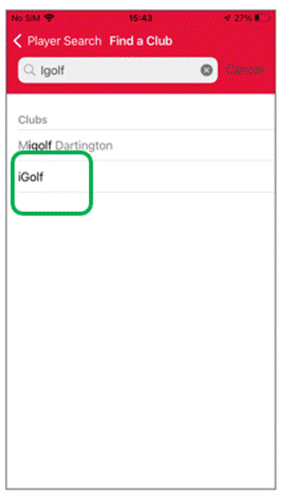
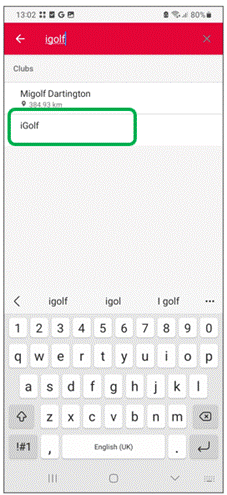
16. The name filter has now updated to match your search options – see below:
IPHONE | ANDROID |
|
|
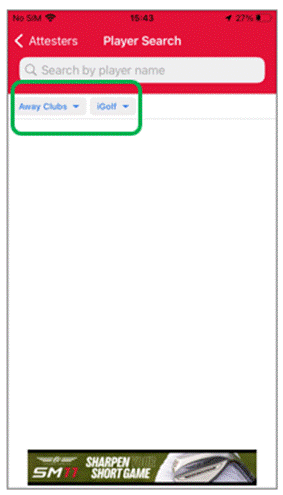
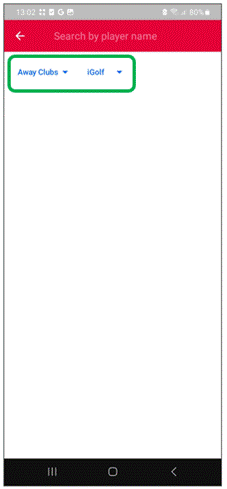
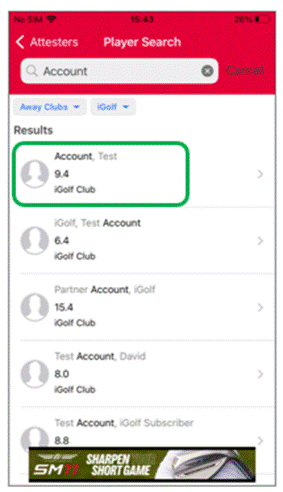
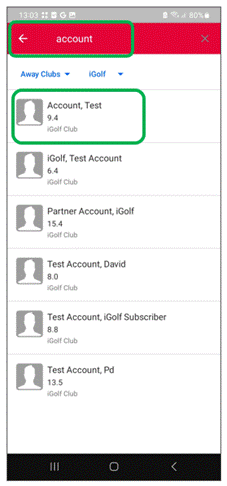
17. Type in the surname of your playing partner.. You will then see a list of options – pick the correct player – see below:
IPHONE | ANDROID |
|
|
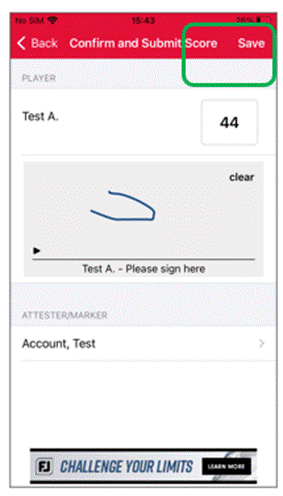
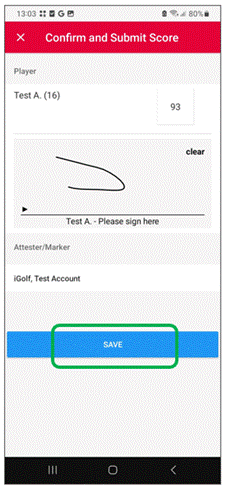
18. Lastly, select “save” and that round will be added to your Handicap Index® – see below:
IPHONE | ANDROID |
|
|
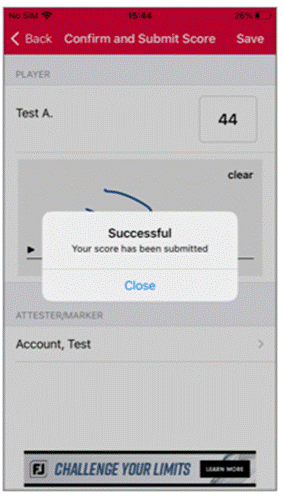
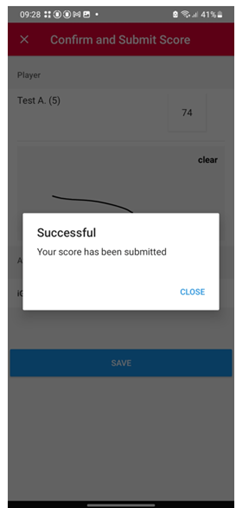
19. Finally, you will see confirmation that your round has successfully been applied to your Handicap Index®
IPHONE | ANDROID |
| |
Was this article helpful?
That’s Great!
Thank you for your feedback
Sorry! We couldn't be helpful
Thank you for your feedback
Feedback sent
We appreciate your effort and will try to fix the article